

Linux is a powerful operating system widely used in cloud computing, servers, and development environments. For beginners, understanding basic commands, navigation, and file management is the first step toward mastery.
In this tutorial, we’ll go through essential Linux commands, how options and arguments work, and how to organize your files and directories.
1️⃣ Exploring the Current Directory
To start, check where you are in the Linux filesystem:
Command:
pwdpwd stands for print working directory
It tells your current location in the system
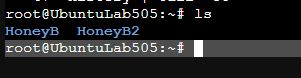
Next, list the files and folders in your current directory:
Command:
lsls lists the contents of the directory
This command works without any options or arguments
2️⃣ Using Commands with Options and Arguments in Linux
In Linux, commands can behave differently depending on whether you provide options or arguments. Understanding this is key to using the terminal effectively.
1. Commands without arguments
Some commands do not require any arguments. They run immediately and produce output on their own.
Example:
pwd (print working directory) shows your current folder.
No extra input is needed — it works right away.
2. Commands that need arguments
Other commands require an argument to function. For instance:
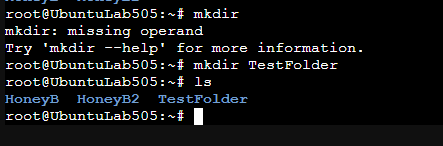
mkdir
Running mkdir alone will fail, because Linux doesn’t know what directory to create.
You must provide the folder name as an argument:
mkdir TestFolder
Now the command runs successfully and creates the folder TestFolder.
If a command expects an argument and you don’t provide one, it will refuse to run.
3. Commands with optional arguments or options
Many commands accept options, which are modifiers that change how the command behaves, but aren’t always required.
Example:
ls
Running ls alone lists the files and folders in the current directory.
Adding options can enhance the output:
ls -l → showing detailed listing
ls -a → showing hidden files
ls -lh → human-readable file sizes
Options allow you to customize the output, but the command can still run without them.
4. Combining options and arguments
You can also use both an option and an argument:
ls -l Lab
-l is an option (detailed view)
Lab is the argument (specific folder to list)
This shows the detailed contents of the Lab folder only.
Using commands correctly with options and arguments is essential for efficiently navigating the Linux filesystem and managing files.
3️⃣ Navigating Directories
Move into a folder:
Commands:
cd TestFolder
pwd
cd = change directory
pwd confirms you are now inside the folder
To move back to the parent directory:
Command:
cd ..
4️⃣ Optional Extra Commands (Demonstrating Mastery)
Create nested folders:
Commands:
mkdir -p Lab/Test
ls Lab
Access command help:
Commands:
ls –help
man ls
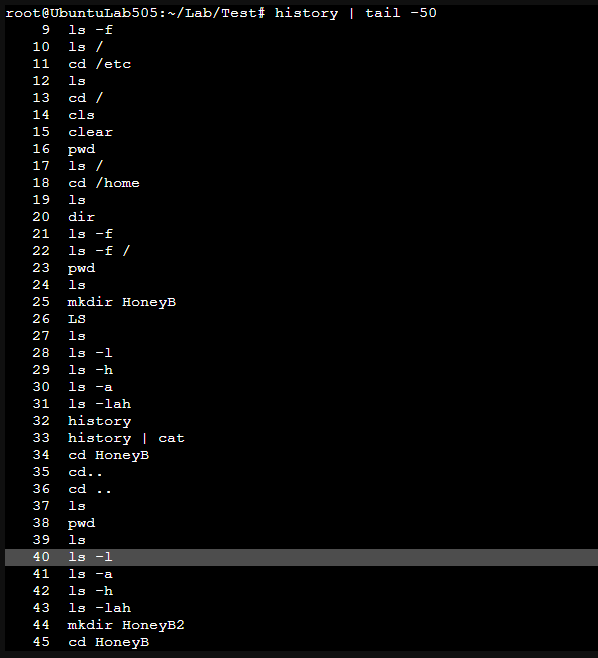
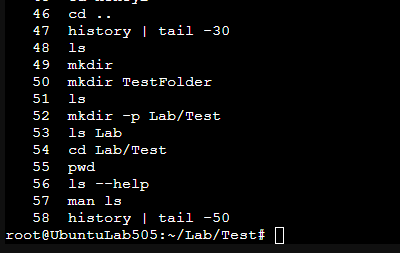
5️⃣ Command History
Linux keeps a history of all commands you run:
Command:
history | tail -50
Shows your recent commands
Great for tracking what you’ve learned and documenting your work
Conclusion
By mastering these basic commands, you can:
• Navigate the Linux filesystem
• Manage files and directories
• Access documentation for any command
• Build confidence for more advanced Linux tasks
Practice is key — try creating directories, exploring options, and checking your command history regularly.
Leave a Reply