

Efficiently navigating the Linux file system is a key skill for anyone working with servers, system administration, or DevOps. In this tutorial, I’ll show how I created directories, navigated them, and managed files using both absolute and relative paths.
1️⃣ Understanding Paths in Linux
Before diving into commands, it’s important to understand the difference between absolute and relative paths:
Absolute Path:
The “full address” of a file or folder
Always starts from the root directory (/)
Works regardless of your current location in the file system
Example: /home/user/assignment/music/rock/song1.mp3
Relative Path:
The “directions from where you currently are”
Never starts with a slash /
Depends on your current directory
Symbols used:
. → current directory
.. → up one level
~ → home directory
Example: ../jazz (moves from the rock folder to its sibling jazz)
2️⃣ Setting Up a Safe Playground
To practice safely, I created a sandbox environment so I wouldn’t accidentally modify real files. Here are the commands I used:
mkdir -p ~/assignment/music/rock
mkdir -p ~/assignment/music/jazz
mkdir -p ~/assignment/photos/2023
mkdir -p ~/assignment/photos/2024
touch ~/assignment/music/rock/song1.mp3
touch ~/assignment/photos/2023/photo1.jpg
mkdir -p ensures all parent directories are created if they don’t exist
touch creates empty files to work with (song1.mp3 and photo1.jpg)
This gave me a clear folder structure for my practice:
assignment/
├── music/
│ ├── rock/
│ │ └── song1.mp3
│ └── jazz/
└── photos/
├── 2023/
│ └── photo1.jpg
└── 2024/

Setting up a safe sandbox: creating directories and sample files using mkdir and touch commands.
3️⃣ Task 1: Absolute Navigation
Absolute paths are reliable because they work no matter where I currently am.
cd ~/assignment/music/rock
pwd
ls /var/log
cd ~/assignment/music/rock → navigates directly to the rock folder
pwd → prints my current directory path
ls /var/log → lists the contents of /var/log without moving into it
Absolute paths are especially useful when working on remote servers or complex directories.

Navigating directories using absolute paths. Commands used: cd ~/assignment/music/rock, pwd, and listing contents with ls /var/log.
4️⃣ Task 2: Relative Navigation
Relative paths depend on my current directory. Starting inside ~/assignment/music/rock
cd ..
pwd
cd jazz
pwd
cd ../../photos/2023
pwd
cd .. → moves up one level to music
cd jazz → moves to the sibling folder jazz
cd ../../photos/2023 → moves up two levels then into photos/2023
Relative paths are handy for quick navigation within a known folder structure.
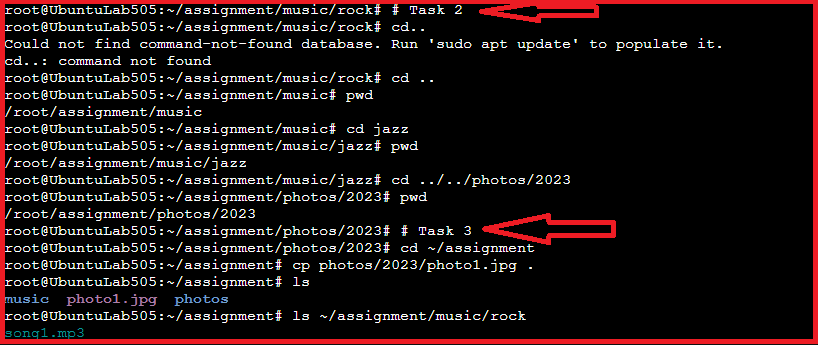
Navigating directories using relative paths. Commands shown: moving up a level (cd ..), switching to sibling folder (cd jazz), and navigating to photos/2023 (cd ../../photos/2023).
5️⃣ Task 3: Basic File Operations
File operations are essential for managing my data. Here’s what I did:
cd ~/assignment
cp photos/2023/photo1.jpg .
ls
rm ~/assignment/music/rock/song1.mp3
ls ~/assignment/music/rock
cp photos/2023/photo1.jpg . → copies the file to the current directory (. = here)
ls → confirms the file has been copied
rm ~/assignment/music/rock/song1.mp3 → deletes the sample file
ls ~/assignment/music/rock → confirms the folder is now empty
These commands demonstrate safe copying and deletion in Linux.

Deleting a file using rm ~/assignment/music/rock/song1.mp3 and verifying the folder is empty with ls ~/assignment/music/rock. Also demonstrates copying a file with cp photos/2023/photo1.jpg .
6️⃣ Key Takeaways
Absolute paths are reliable anywhere in the system
Relative paths are flexible when working within a known directory
Symbols., .., and ~ allow fast and efficient navigation
Always create a sandbox or playground for practice to avoid accidental file loss
Practicing both navigation types builds confidence for more advanced Linux tasks
This tutorial provides a complete foundation for navigating Linux directories and managing files. Mastering these basics prepares you for more advanced Linux tasks, including scripting, permission management, and system administration.
Leave a Reply